Pre-Read Workflow
Pre-Read is a read type that allows a radiologist to author an interpretation of a study without that interpretation being distributed or counted as a final (or preliminary) read at the facility level. When a pre-reader completes their report, the study returns to the facility worklist as Ready to Read - the facility sees a normal, unread study. A supervising or credentialed radiologist then opens the study, finds the pre-reader's text already loaded in the report editor as a starting point, and completes the report under their own name.
The key distinction from a draft is finality and visibility. A draft isowned by a single radiologist who has not yet completed their work. A Pre-Readis a completed contribution by one person that is invisible to the facility andfeeds directly into the workflow of a second person who will own the finalreport. The pre-reader's name does not appear on any distributed report.
The core value of Pre-Read is that it lets non-credentialed or restricted readers contribute meaningful interpretive work without disrupting facility workflows, without creating compliance exposure, and without requiring the supervising radiologist to start from a blank page.
In order to enable pre-reads, a radiology group must first have it turned on for them and configured as per the read type documentation. Once that is done, a group administrator is able to set up the necessary permissions and configuration to make use of it. Note that after Pre-Reads are enabled, you will need to log in again in order to see the options
Setting up Pre-Read
Pre-Read is disabled by default. Enabling it requires three distinct steps - at the radiology group level, at each facility, and for each individual user. All three must be completed before any user can create a Pre-Read report.
This section will outline how the first physician will be able to create the Pre-Read report. Once complete, it will NOT be sent to the facility, but a report will exist in the system with a read type of Pre-Read. Facility users will NOT be able to see this report.
The facility we will use is North Haverbrook Imaging Center, and the physician who will do the Pre-Read is testrad1.
1. Contact OnePACS Support
The OnePACS support team must unlock the feature for your group.
2. Pre-Read Facility Configuration
As shown in the pre-read read type documentation (see links above), the facility should be enabled for pre-reads as shown.
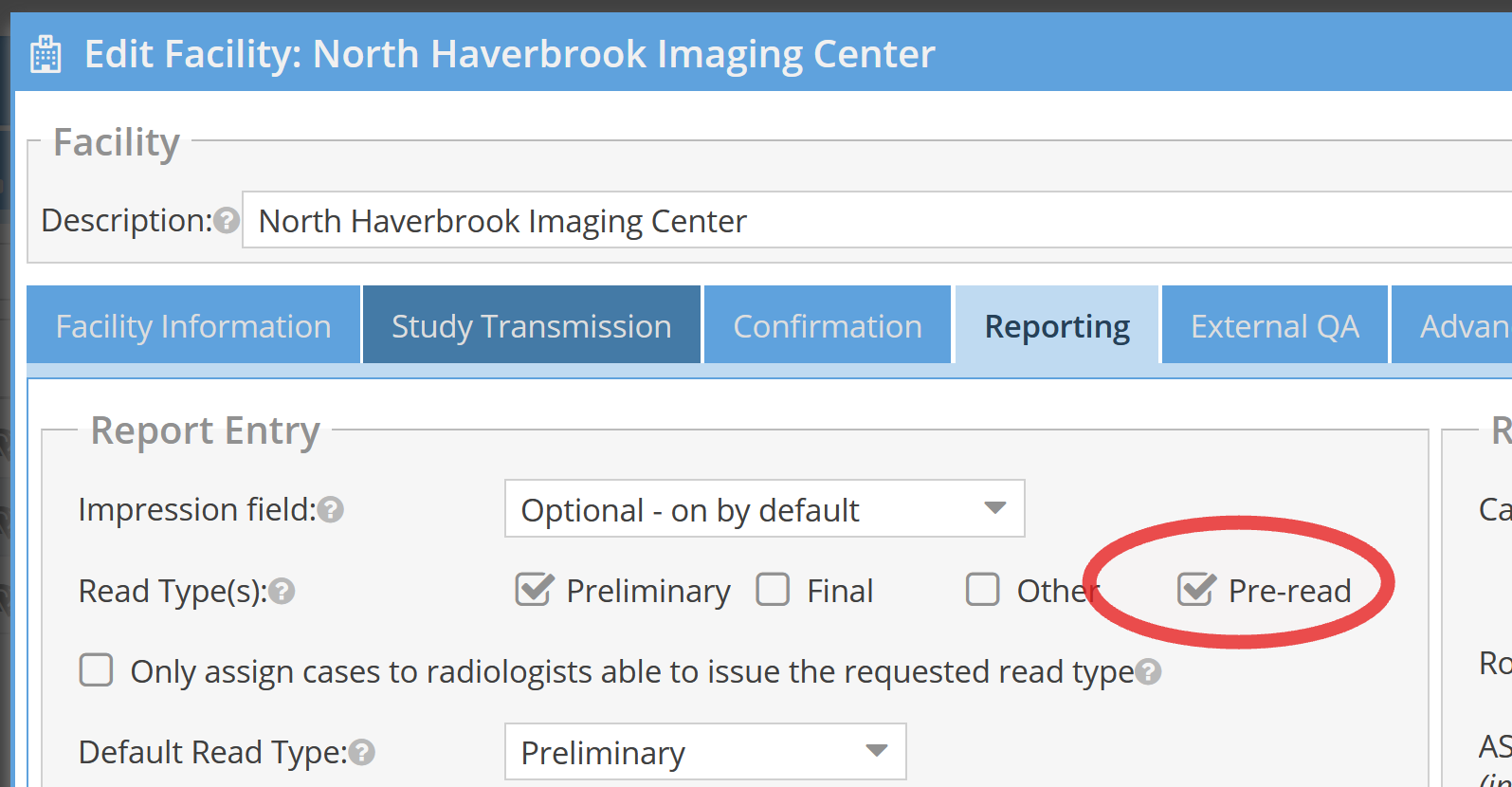
3. Pre-Read Radiologist Permissions
We will now edit testrad1's permissions and limit their ability to only perform pre-reads for North Haverbrook.
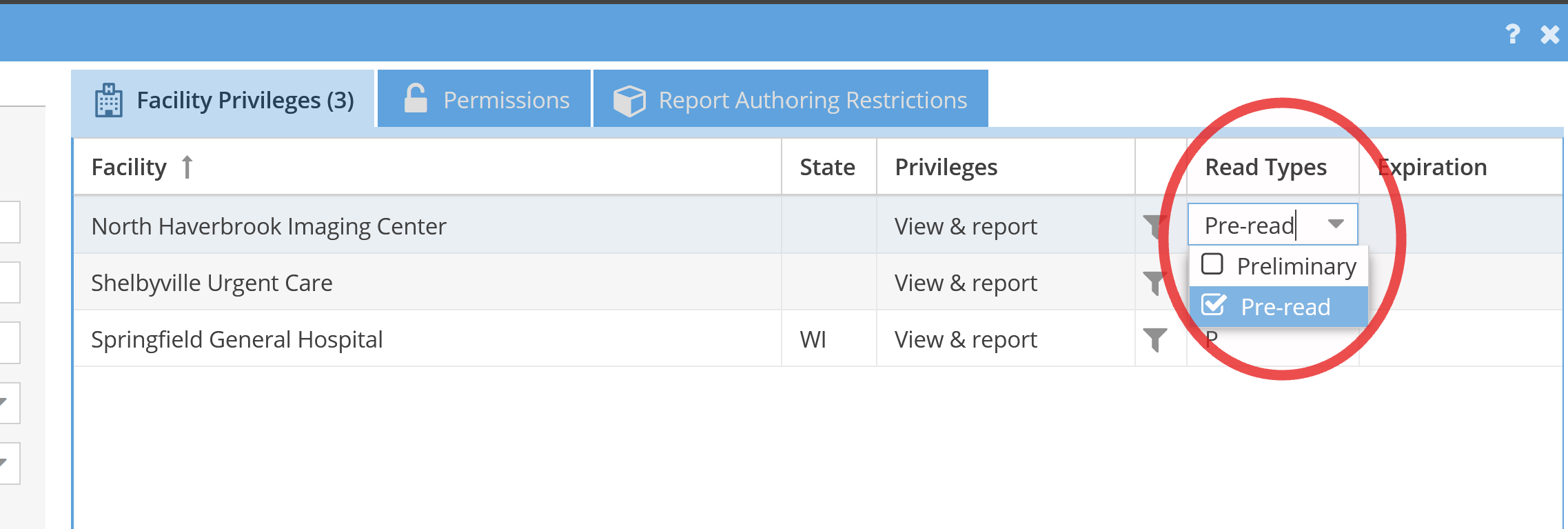
Now, when testrad1 goes to enter a report for North Haverbrook, it will only have the Pre-Read read type enabled and selected.
Using Pre-Read
Once configuration is complete, Pre-Read works as a seamless two-step handoffbetween the pre-reader and the supervising radiologist. The two sub-sectionsbelow describe each person's experience.
For the Pre-Reader
- Open the study from your worklist.
- The report editor will default to the Pre-Read read type if that is your assigned read type for this facility.
- Author your interpretation as you normally would.
- Click Complete Report.
The study is now marked as Ready to Read on the facility worklist. The facility sees a normal, unread study — there is no indication that a pre-read report exists or that anyone has already worked on the case. The study is ready for the supervising radiologist to pick up.
For the Supervising Radiologist
- Find the study on your worklist. Studies with a completed pre-read display a Pre-read status icon so you can identify them at a glance.
- Open the study. The report editor loads with the pre-reader's text pre-populated as your starting point.
- Review and edit the report as needed.
- Delete the pre-reader's name if it appears on the report.
- Select your read type - Final or Preliminary - as appropriate.
- Click Complete Report.
The report is distributed normally under the supervising radiologist's name.
Auto-Assignment
If your practice uses auto-assignment rules to route studies, those rules can be configured to recognize Pre-read studies and automatically assign them to the appropriate supervising radiologist. If you want to set this up, confirm withyour OnePACS administrator that your auto-assignment configuration covers already-read studies - Pre-read studies are eligible for this routing.