...
OnePACS’ SAML ACS URL: Each Identity Provider now has a unique ACS URL, generated when you create the IdP record in OnePACS. This ACS URL must be used for:
- Single Sign-On URL
- Recipient URL
- Destination URL
- Audience URL
...
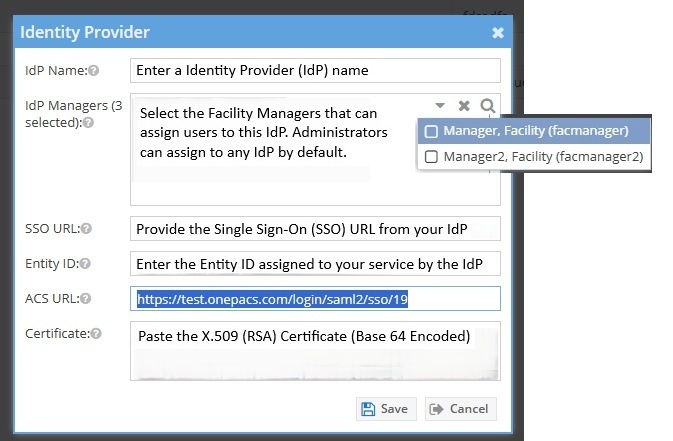
Configure your Identity Provider in OnePACS with the metadata or information provided by your IdP:
...
- IdP Name
...
- : An easily identifiable name for use in OnePACS
- IdP Managers
...
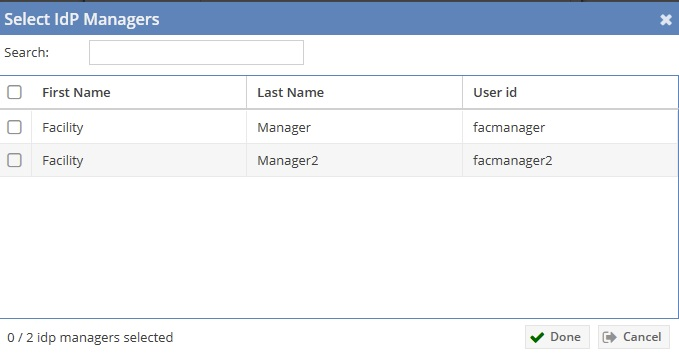
- : Add facility managers by clicking in the IdP managers box, or click the magnifying glass to select multiple facility managers
...
- .
- SSO URL
...
- : Provided by the IdP
- Entity ID
...
- : Provided by the IdP
- ACS URL
...
Certificate
- : This field displays only after saving.
- Certificate: Provided by the IdP
- Notification Email Address: Contact for IdP-related communications
- SAML Signing Certificate: Eligible signing certificates for use with the IdP.

Important Note: The ACS URL is only generated after you save your Identity Provider. If you need the ACS URL before entering the final details, you can save the Identity Provider with blank or temporary values and update it later.
...
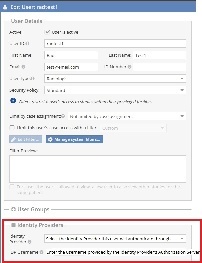 **The IdP NameID must match the value passed back from this NameID attribute and is case sensitive.
NOTE: Admins are responsible for creating Identity Providers (IdPs). They can either add users directly or delegate access by assigning privileges to facility managers, who can then add other facility managers, facility users, or assign existing users to IdPs for authentication.
...
To ensure secure SAML communication, OnePACS supports signed authentication requests. The X.509 certificate used to sign these requests is available directly within the Identity Provider configuration page.
Where to Find It:
- Navigate to Admin > Identity Providers
- Set up your IdP configuration within OnePACS; it will appear on the identity provider page
- The Public Cert Column will be located in the grid associated with your new identity provider configuration
- Hover over the column and click the copy button to capture the cert to place in the signed certificate section of your IdP
This certificate should be added to your IdP configuration to validate incoming signed requests from OnePACS.The Identity Providers grid displays two certificates. OnePACS automatically labels certificates based on their expiration dates. The Current Cert column displays the SAML signing certificate with expiration date that is farthest in the future. The Deprecated Cert column displays the certificate with the nearest expiration date.
To copy the signed request certificate, navigate to Admin > Identity Providers. Hover over a certificate in the Current Cert or Deprecated Cert column to display the Copy button.

Click the Copy button to capture the certificate. Enter the certificate into the appropriate section of the IdP to validate incoming signed requests from OnePACS.
Important Note: Users attempting to log into OnePACS while an administrator is updating the SAML signing certificate may be unable to authenticate their credentials until the update is complete. Administrators are advised to work efficiently when updating certificates.
Rotate SAML Signing Certificates
Some radiology groups configure their Identity Provider (IdP) to use SAML signing certificates from OnePACS. OnePACS administrators for these radiology groups can rotate SAML certificates at will, with minimal disruption to user authentication and login.
When rotating SAML certificates to replace an old certificate with a new one, the old certificate needs to remain active for a period of time while IdP administrators update their systems with the new certificate. OnePACS administrators can control which SAML signing certificate each external IdP uses to sign SAML authentication requests. This enables certificate rotation with minimal disruption to user logins.
Important Note: Failure to rotate SAML signing certificates in a timely manner restricts all users from logging in. OnePACS refreshes SAML certificates 70 days prior to their expiration dates as a best practice. OnePACS administrators receive a cadence of reminder emails to ensure that they have completed rotation ahead of this deadline.
To configure a SAML signing certificate for an external IdP, navigate to Admin > Identity Providers. Select an IdP and click the Edit button

The Identity Provider window displays. Select the desired certificate from the SAML Signing Certificate drop-down and click Save.

Click Save. The Certificate Change Warning window displays. Click Yes to confirm the change.

🛠️ How It Works
...