OnePACS administrators can use a CSV file to import up to 500 Study Types at once. Administrators can also track the progress and outcome of an import, handle partial import failures, and manage import errors.
Prepare the Study Types CSV File
Apply the following guidelines when preparing a CSV file to import Study Types in bulk.
Required Fields
- To update existing Study Type records: Study Type ID
- To create a new Study Type record: Study Type Name
Optional Fields
- wRVU value
- Modality
- Billing code
- Additional attributes
Study Type Matching Rules
The OnePACS system uses the following matching rules when bulk importing Study Types:
- The system matches and updates existing Study Types only using Study Type ID via the Import CSV function.
- The system updates Study Types that have Study Type IDs listed in the CSV file and already exist within the Radiology Group.
- For Study Types without a Study Type ID, the system creates a new Study Type instead of attempting to match with an existing Study Type.
Important Note: The system does not attempt to match or update records using Study Type Name alone.
Bulk Import Study Types
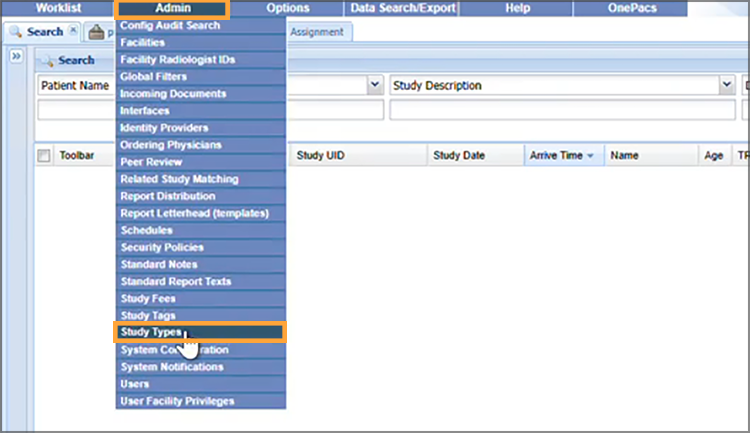
To import Study Types in bulk, an administrative user navigates to the Study Types page.
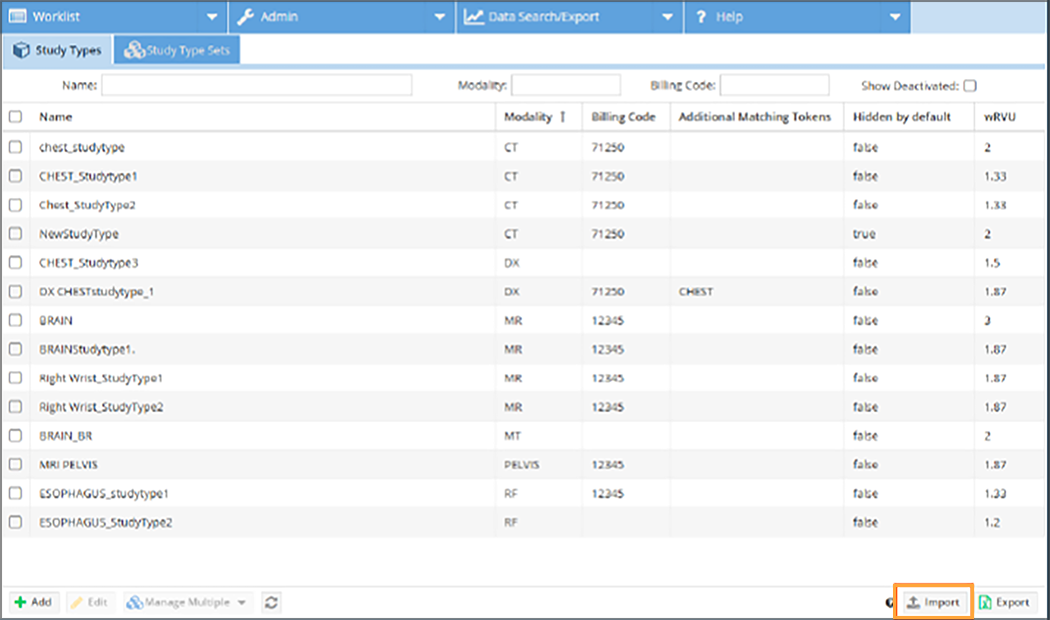
The user selects the Show Deactivated checkbox, then clicks the Import button.
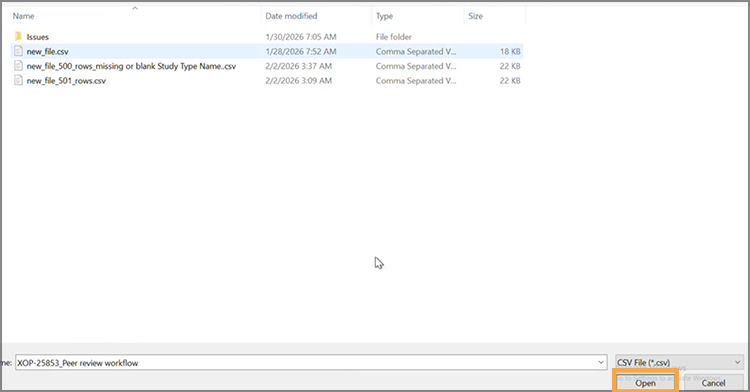
The Open window displays. The user selects the desired CSV file and clicks Open.
Important Note: The CSV file may contain up to 500 Study Type rows. For CSV files with more than 500 Study Type rows, split the data into multiple files and import each file separately, or contact OnePACS support.
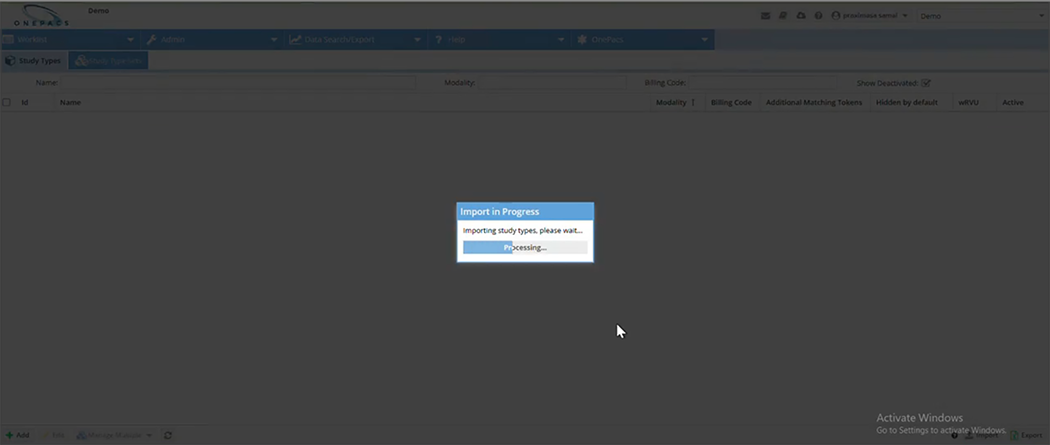
The OnePACS system validates the CSV file prior to processing the import. All rows that pass validation are imported successfully. The Import in Progress window displays throughout the import process. The length of the import process varies based on the size of the uploaded file.
A success message displays upon full, successful completion of an import.
Troubleshoot a Failed Study Type Import
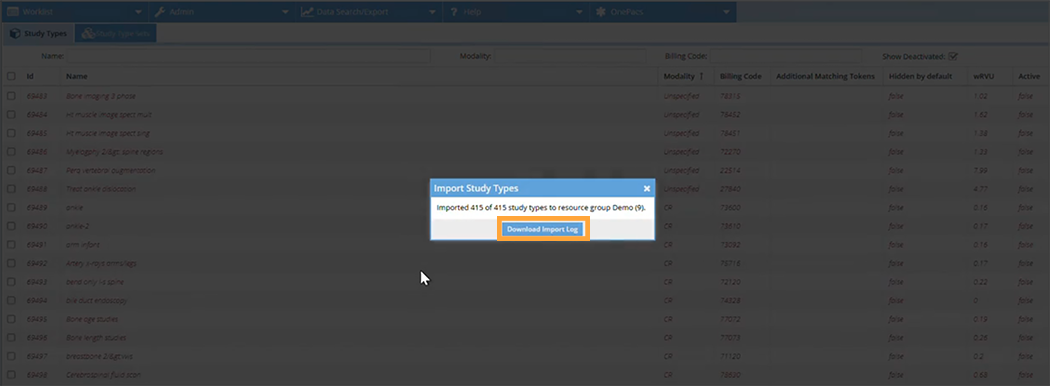
Study Type rows that fail during validation or processing are not imported. Failed rows do not prevent the system from importing successful rows. If any rows fail, an error window displays the number of successful uploads and the total number of attempted uploads. Click the Download Import Log button and refer to the Import Log CSV for detailed information about successes and failures during the import process.
Edit Multiple Study Types
In addition to bulk importing, users can make certain changes across multiple study types directly from the Study Types tab. To edit multiple Study Types without a bulk import, select the checkbox beside each Study Type to receive the desired change, then click the Manage Multiple button.
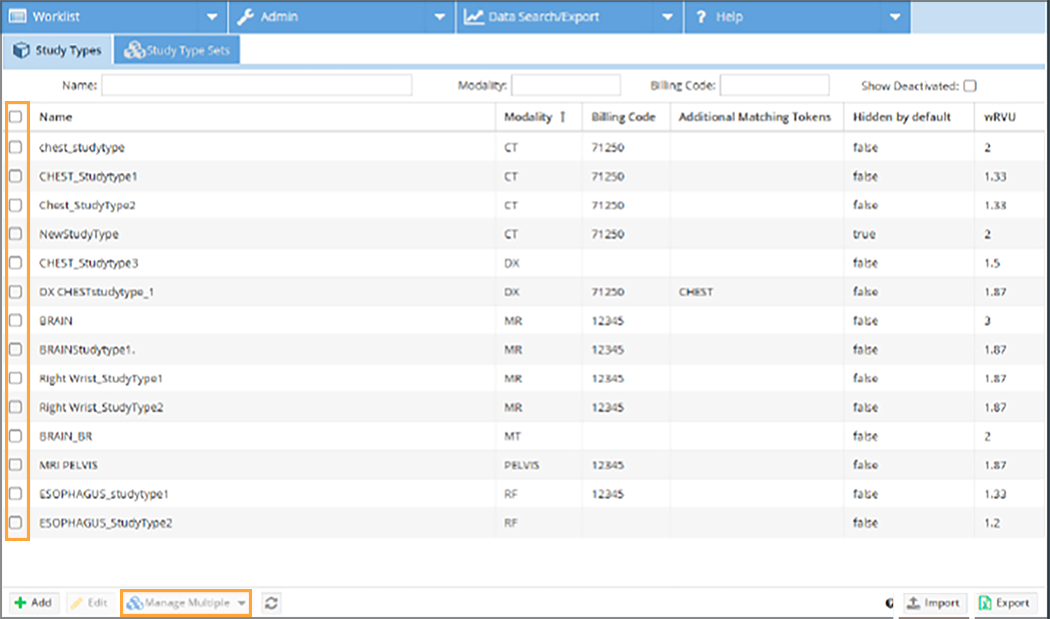
From the Manage Multiple context menu, select one of the following actions to perform:
- Change the wRVU for all selected Study Types
- Change the billing code for all selected Study Types
- Activate, deactivate, or delete all selected Study Types