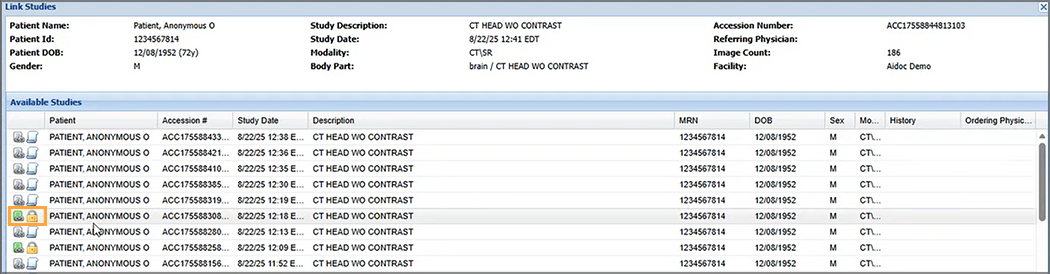
The Linking Studies feature in OnePACS enables users to link related studies within the same order. This feature is particularly useful when patients undergo multiple procedures in the same visit. By interpreting, reporting, and billing these studies together, facilities can improve efficiency, reduce administrative overhead, and enhance clinical accuracy.
An administrator contacts OnePACS Support or the OnePACS Implementation Team to enable the Linking Studies feature. The radiology group manages permissions for the Linking Studies feature at the user level. Radiologists, technologists, and operations staff may link and unlink studies as permitted by a Radiology Group Administrator or Facility User Manager.
Study Eligibility
To be eligible for linking via the Linking Studies feature, all studies to be linked must:
- Be for the same patient.
- Be acquired under the same order.
- Be in an unread state.
- Come from the same facility.
A user cannot link studies that have previously been interpreted. Studies originating from different orders or facilities are also not eligible for linking.
Important Note: A user can unlink studies after reporting if corrections or changes become necessary.
Link Studies in OnePACS
Users can link OnePACS studies in one of three ways.
Link Studies from the Worklist
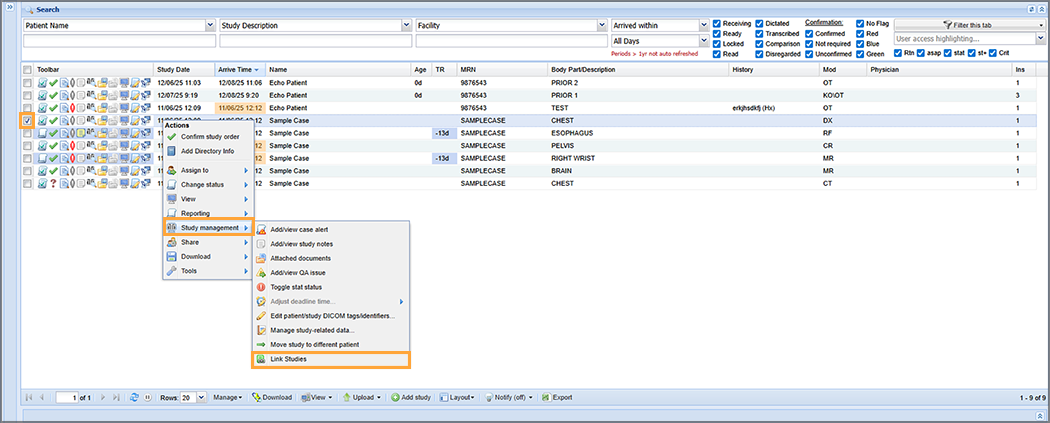
To link studies from the OnePACS worklist, right-click in the row of the study. From the context menu, select Study management, then Link Studies.
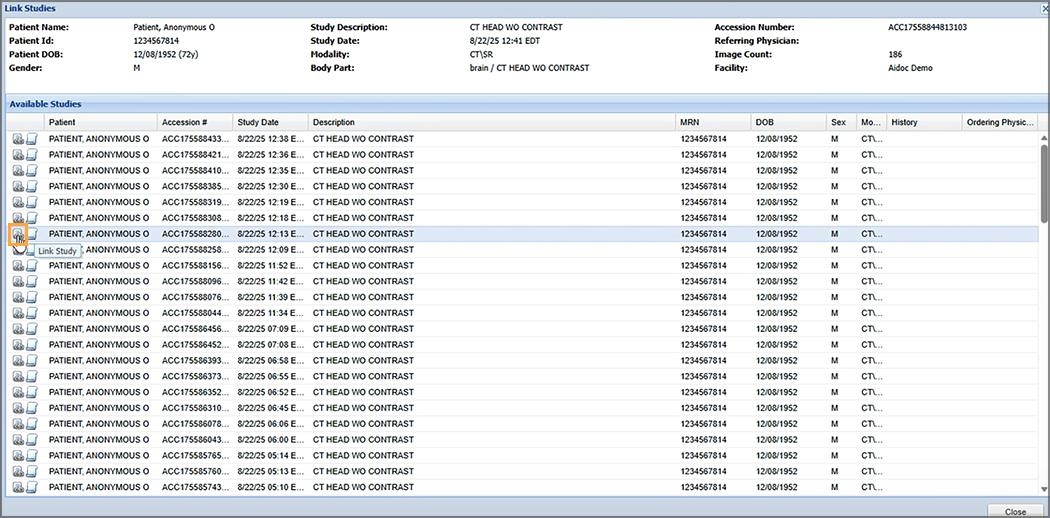
Studies eligible for linking display in the Available Studies list. Click the Link Study icon to the right of each study to link.
Link Studies from the Confirmation Page
To link studies as part of the confirmation process, right-click in the row of the study and click Confirm study order.
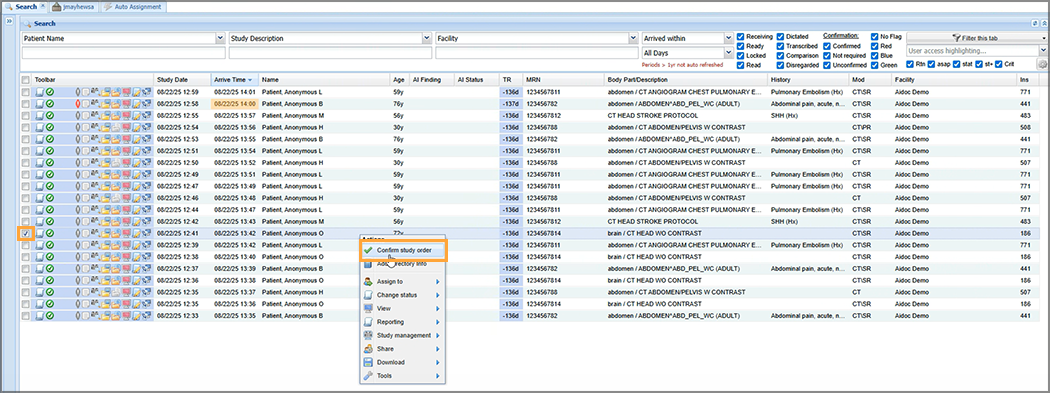
On the Confirm Study Order window, click the Link Studies button in the lower left-hand corner.
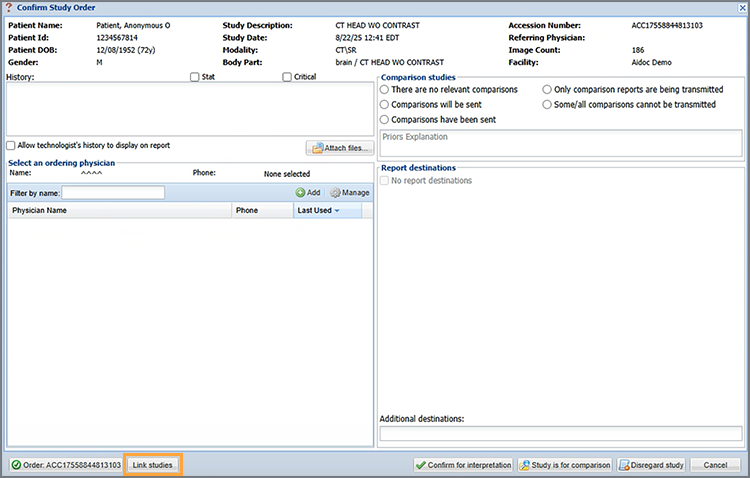
Studies eligible for linking display in the Available Studies list. Click the Link Study icon to the right of each study to link.
Click Yes on the Confirm Link Study window to confirm study linking.
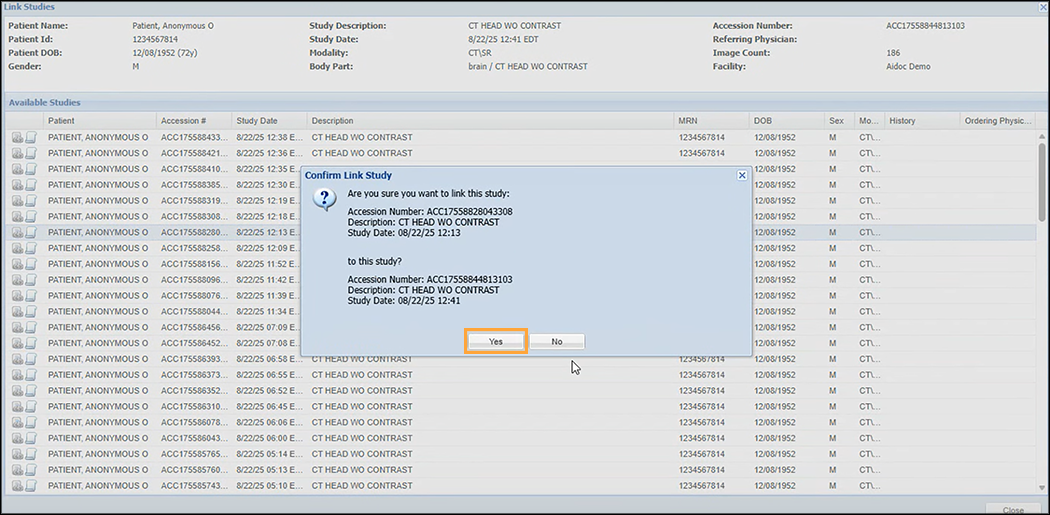
The icon updates to green for studies that a user has successfully linked, and the hover text updates to Unlink Study.
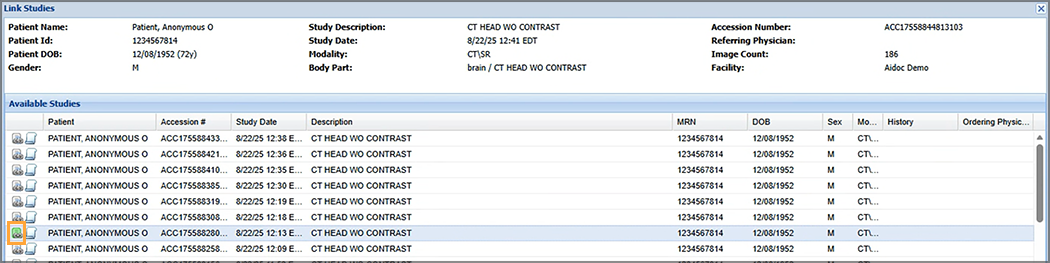
Link Studies from the Cloud Report Editor
Right-click in the row of the study to be linked. Select Reporting and click Cloud Report Editor/Generator.
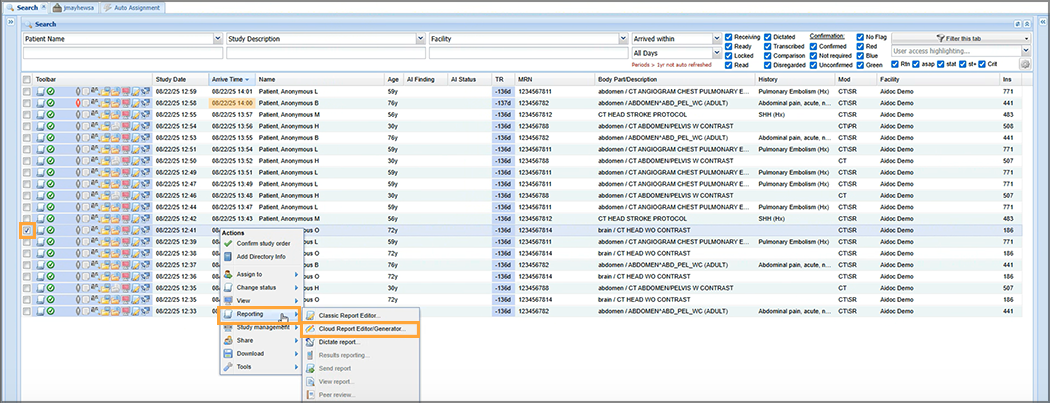
Click the Link Study button beside each study to be linked. The icon updates to green when a study has been successfully linked, and the hover text updates to Unlink Study.

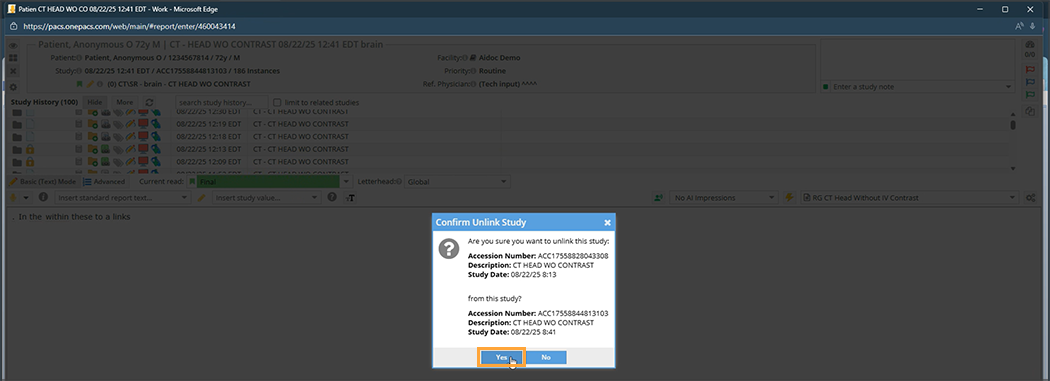
Click Yes on the Confirm Link Study pop-up window to confirm study linking.
Unlink Studies in OnePACS
After reporting, users can unlink OnePACS studies in one of three ways.
Unlink Studies from the Worklist
Reft-click within the row of the study to be linked. From the context menu, select Study management, then Link Studies.
The Link Studies window displays. Click the Unlink Study icon to the left of a study to unlink it.
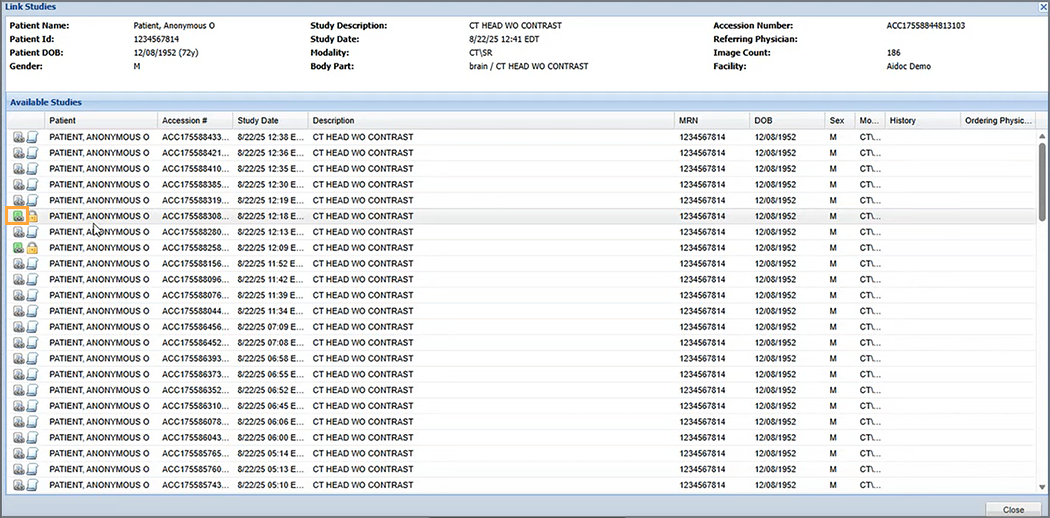
The Confirm Unlink Study window displays. Click Yes to unlink the study.
Unlink Studies from the Confirmation Page
On the Confirm Study Order window, click the Link Studies button in the lower left-hand corner.
Click the Unlink Study icon to the left of a study to unlink it.
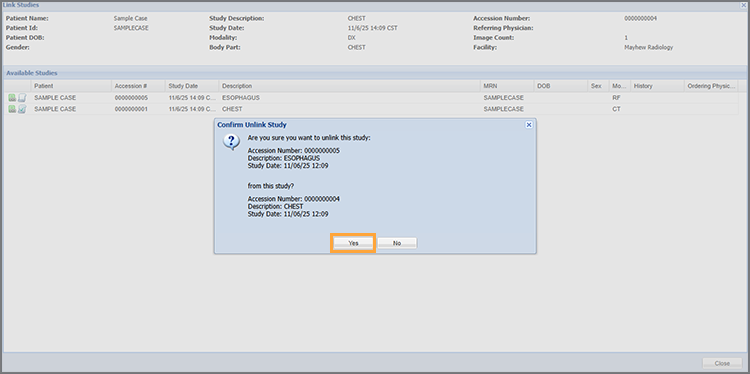
Click Yes on the Confirm Unlink Study to confirm unlinking.
Unlink Studies from the Cloud Report Editor
Right-click in the row of that study. Select Reporting and click Cloud Report Editor/Generator.
Click the green Link Study button beside a study to unlink it.
Click Yes on the Confirm Unlink Study pop-up window to confirm unlinking.
Linked Study Locking
When a user opens a linked study, OnePACS automatically locks all other studies linked to the open study. This prevents other users from making changes to linked studies. The Locked icon displays next to the Unlink Study icon for linked studies that are locked for editing.