The OnePacs Workstation is a desktop application which combines a diagnostic quality DICOM medical image view with prefetching software that automatically downloads images securely from the OnePacs cloud. This page describes the process of installing the OnePacs Workstation on Windows.
| Note | ||
|---|---|---|
| ||
Make sure to review the system requirements for the OnePacs Workstation prior to installation. OnePacs Support is not available for PCs that do not meet these requirements. |
...
A single executable installer file is provided. Users with access privileges allowing use of the Diagnostic "OnePacs Workstation and Study Retriever software " permission will be offered the opportunity to download an installer for the software on login to OnePacs. The installer may also be downloaded on demand from the Options → Downloads menu item.
- Download and execute the installer.
- If upgrading from a previous installation and prompted with a "Clean Installation" option, check this box if you desire all of your settings to be restored to default values (this will erase all of your configuration settings).
- Once the installation is complete, reboot as instructed.
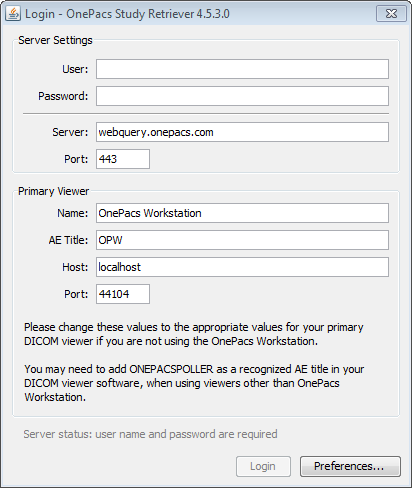
- You will be prompted to log into the OnePacs Study Retriever. Enter your OnePacs user id and password and click "Login".
Related articles
...
Silent Installation
For deployment purposes, a silent install can be achieved using the command line parameters /exenoui /qn.
Optionally, /norestart can be used to skip the restart, though this is not generally recommended.
Example: (from elevated command prompt)
c:\file\path\OnePacsDesktop-14.3.3.exe /exenoui /qn /norestart
Related articles
| Content by Label | ||||||||||||||||||||
|---|---|---|---|---|---|---|---|---|---|---|---|---|---|---|---|---|---|---|---|---|
|